VOICE + WHATSAPP: How to Create an Outbound Cold Call + WhatsApp Campaign
From the same contact list: try calling first, and if they don't answer, automatically send a follow-up WhatsApp message.
Written By Product
Last updated 3 months ago
What are you building?
An outbound voice agent (guide).
A WhatsApp agent that will handle follow-up responses to prequalification or support, depending on the purpose.
A contact list in Contact Manager (or a ready-to-use CSV file).
The Workflow that queues them up.
Step 1: Build the workflow
Workflow → "Create workflow" → you can describe it in chat ("For each contact on the list, call them using the voice agent; if they don’t answer, send them a WhatsApp message") or start from scratch:
Trigger: “Contact List”: select the list you want to work with (or use “Import CSV” as the trigger if you prefer to upload the file at launch, without saving it to the Contact Manager first).
"+" → Outgoing Call: Choose the voice agent; let the number be populated automatically from the contact.
On the "No answer" outcome of the call → "+" → WhatsApp Agent (or "Send WhatsApp Message" if you prefer to send a message directly without routing it to an agent). Select the approved template and map the template’s variables to the contact’s fields. If you use the “WhatsApp Agent” node, the customer’s responses will end up in your WhatsApp agent’s inbox, ready to be handled.
Optional: On the other call outcomes (“Goal Achieved,” “Goal Not Achieved”), you can add additional steps, e.g., a “Update CRM” action when available, or an internal notification.
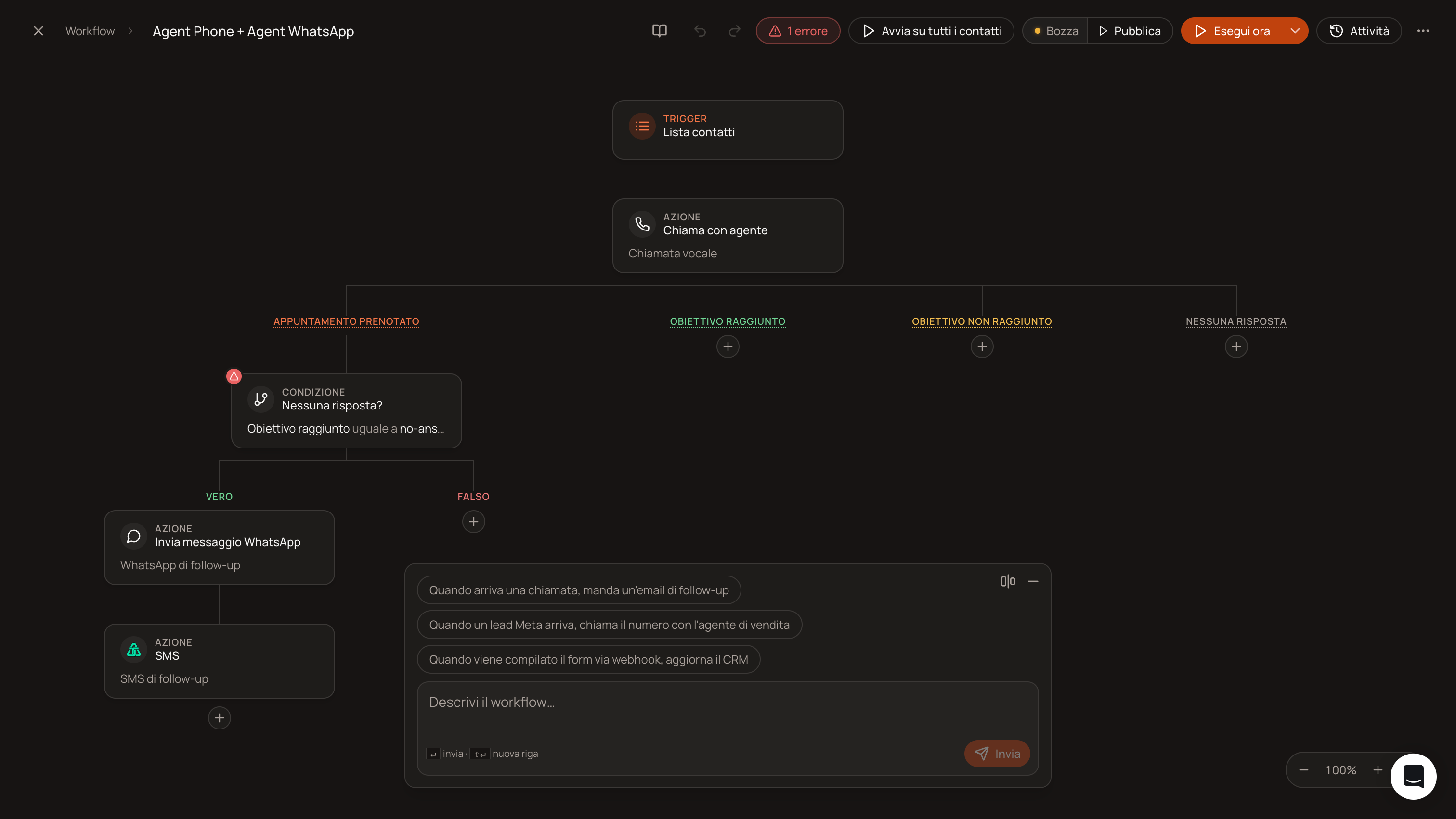
Publish the workflow (“Publish”—read the summary of the actual actions it will perform) and test it first with “Test with AI” (fully simulated, no real contacts involved), then, if necessary, with “Run Now” on a single real test contact.
Step 2: Run it on the entire list
With the “Contact List” trigger configured, a button appears at the top to run the workflow on all contacts in the list at once (equivalent to a campaign, but with multichannel logic already built in). With the “Import CSV” trigger, the workflow runs when you upload the file: it runs once for each row.
What You’ll See Next
Activities → Runs shows you, for each contact, which branch they took (successful call or follow-up WhatsApp message sent) and how long it took. On each contact’s card, the Unified Interactions section displays the call and any WhatsApp message in the same order they occurred.
Was this helpful?
Still need help? Share an idea