Get Started: Create Your First Agent
How to create an agent by describing it in words to AI Builder, what to write to get a good result, and how to fine-tune it using Chat AI.
Written By Product
Last updated 4 months ago
Getting Started: AI Chat
If you want to create your first Agent and don’t know where to start, we recommend beginning with AI Chat.
In the top-left corner, you’ll see a button labeled “+ Create.”
Click Create > Agent, and you’ll be taken to a page like the one shown in the image.
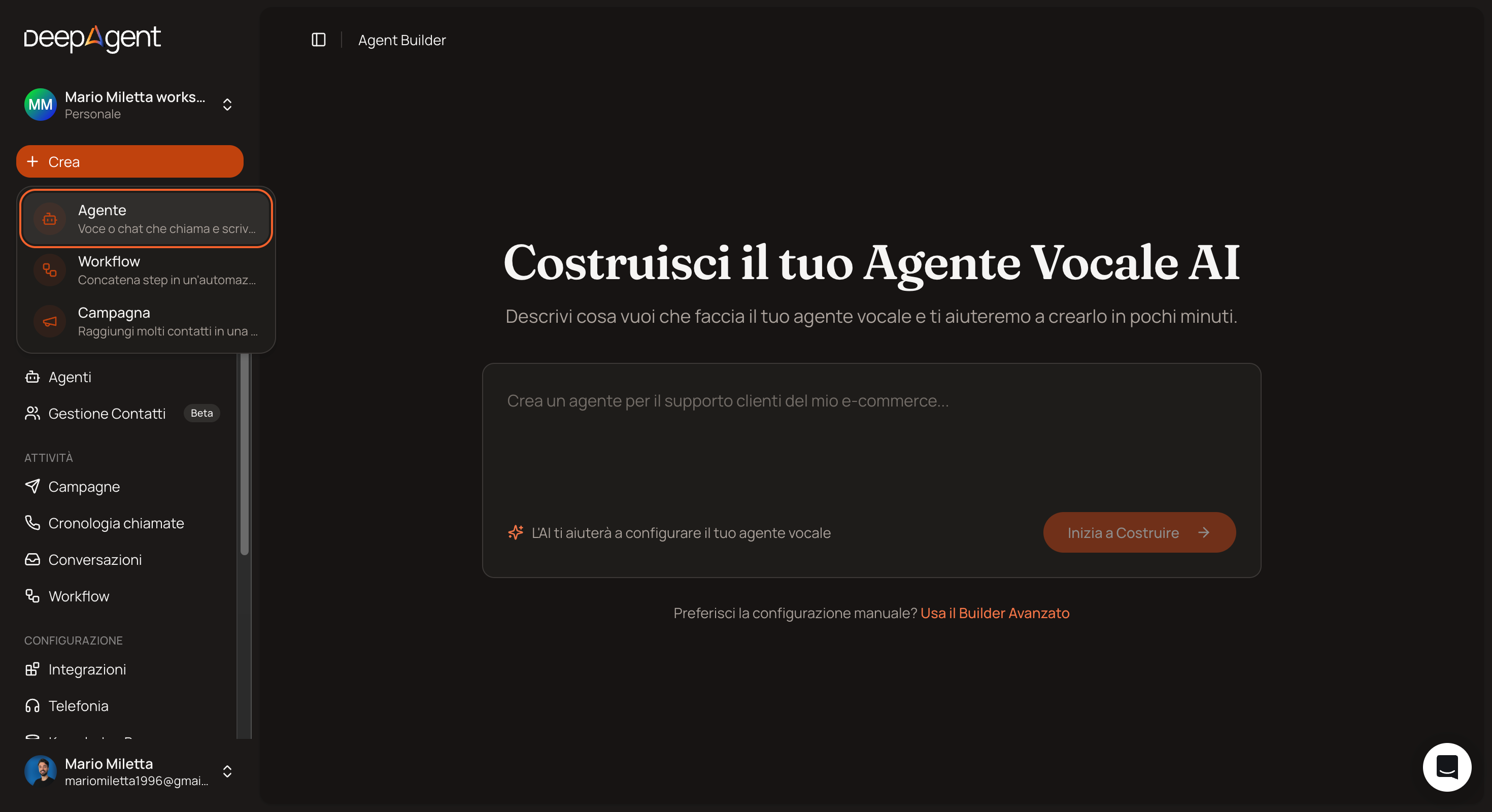
Describe what you want your agent to do: the more detailed you are, the better the result will be.
For example, instead of writing “I want an Agent for my business,” try “I need an Agent for my dental practice that answers questions about services, checks appointment availability, and collects the names and phone numbers of new patients.”
The Chat has been programmed to guide you step by step toward your goal, helping you connect tools like Calendar and Google Sheets and taking you all the way through to deploying the Agent.
When the AI asks you to choose a tone (professional, friendly, formal…), you’ll see selectable buttons. The same applies to the voice: you can listen to previews by clicking the play button, filter by language, and select the one you prefer. For skills, you can choose your Agent’s capabilities, such as appointment scheduling, answering FAQs, or lead qualification.
Don’t just accept the AI’s suggestions. If something doesn’t sit right with you, say so: “I’d prefer a more formal tone,” “change the welcome message,” “add the ability to respond in English.” The AI will adjust the configuration accordingly.
Activate the agent
Once the configuration is complete, the AI will confirm that the agent is ready. Click “Activate Agent” to publish it. Before going live, always use “Test Agent” to make a test call and verify that everything works as expected.
After your initial tests, you can return to AI Chat to fine-tune the configuration based on the feedback.
Advanced Builder
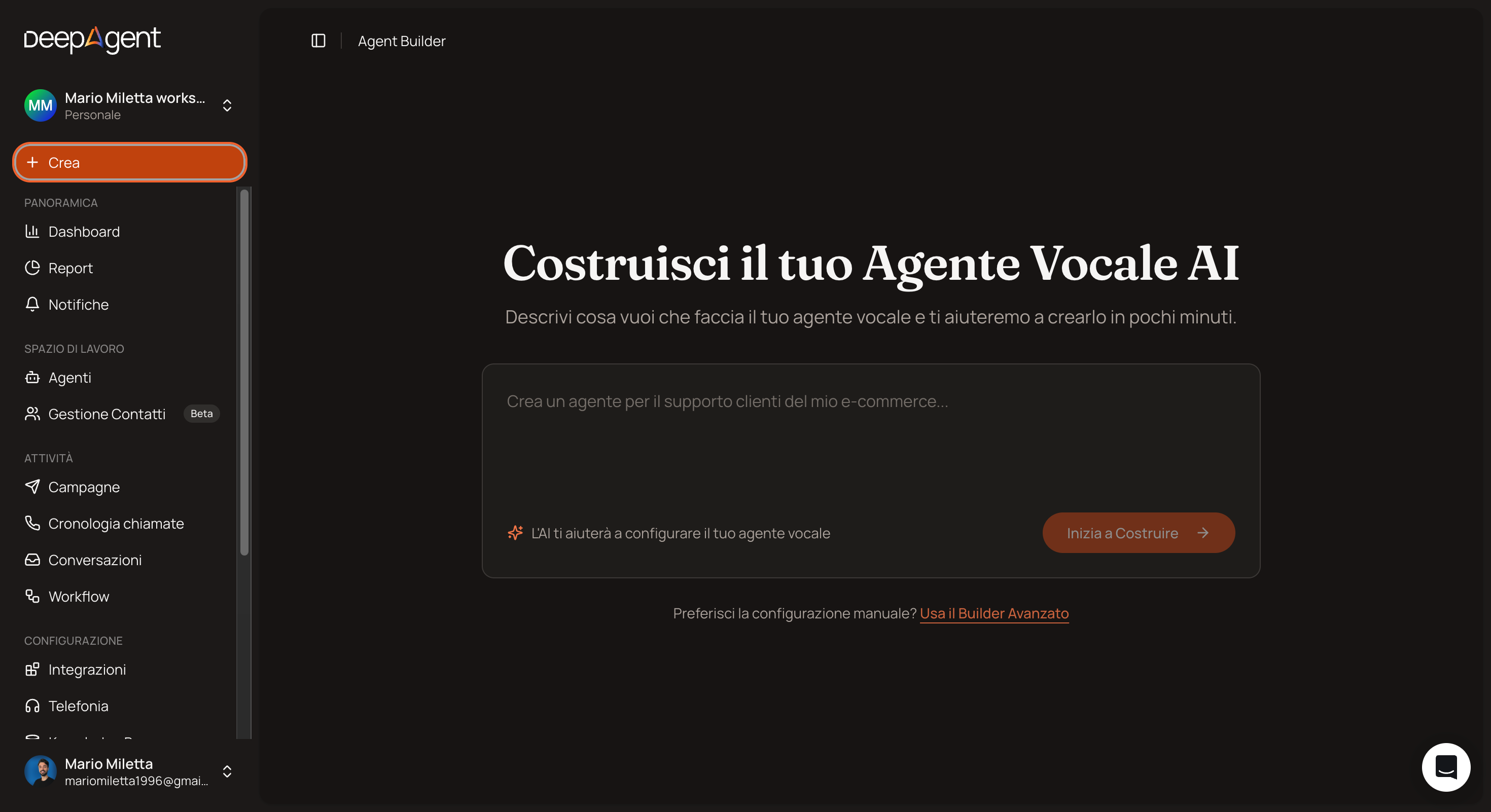
If you prefer to manually configure every aspect, click “Prefer manual configuration? Use the Advanced Builder” at the bottom of the AI Chat. This builder guides you through defined steps. If you like to tinker, you might prefer to use this.
If Something Isn’t Working
If the agent doesn’t respond as expected, go back to the AI Chat and refine the instructions. If you’re not satisfied with the voice, try selecting a different one using the language filter. If the agent isn’t collecting the data you want, explicitly ask the AI: “I want it to collect name, email, and phone number.”
Was this helpful?
Still need help? Share an idea