Campaign: Monitor, pause, or stop the campaign
How to launch or schedule a campaign, track its performance, and know when to stop it immediately.
Written By Product
Last updated 4 months ago
As we've already seen, you can launch a campaign immediately or schedule it for a specific date and time. After launching it, it's essential to monitor it from the campaign details page.
Monitor its performance
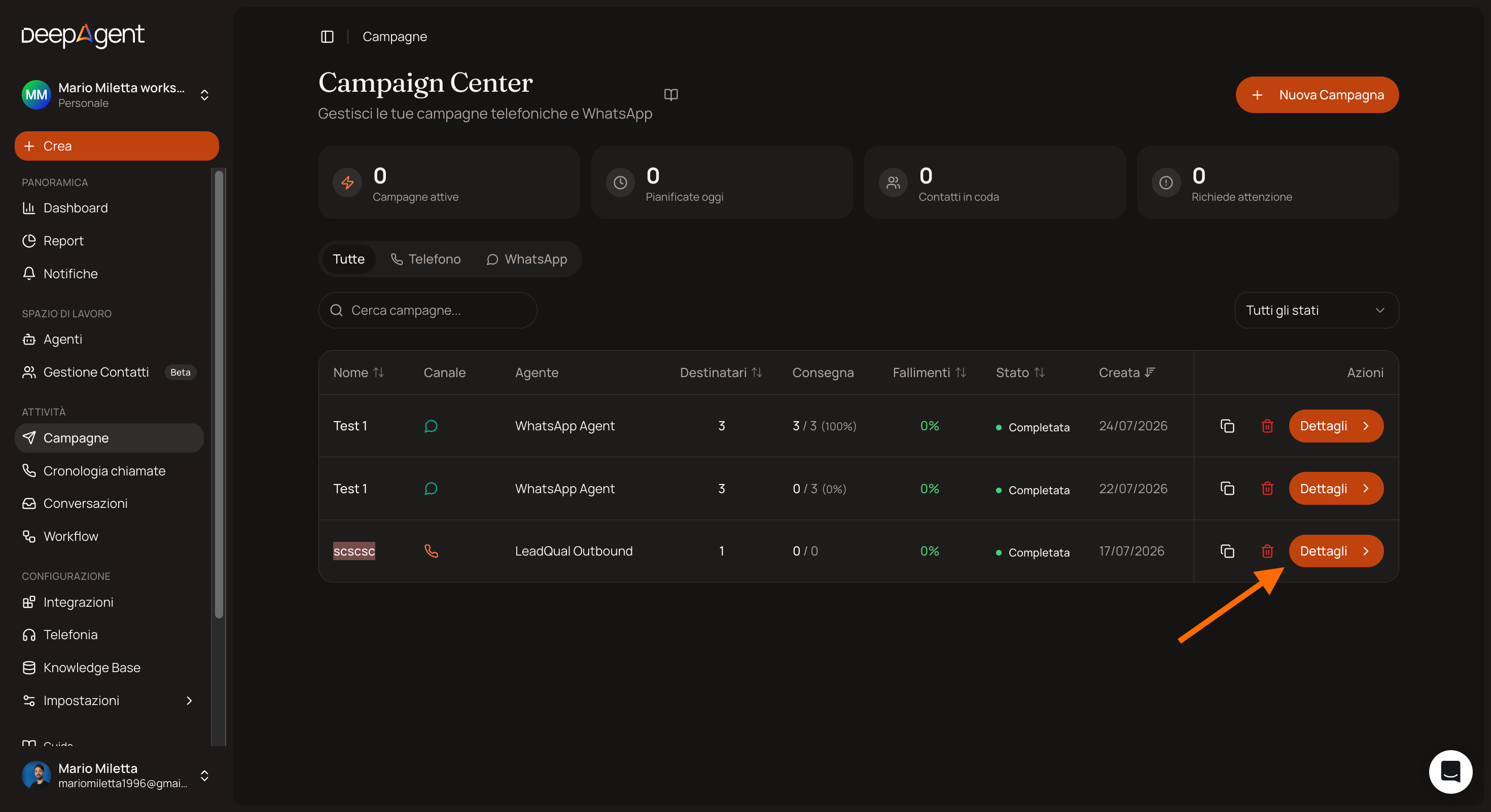
After launching, return to the campaign list. Click “View Details” to open the campaign.
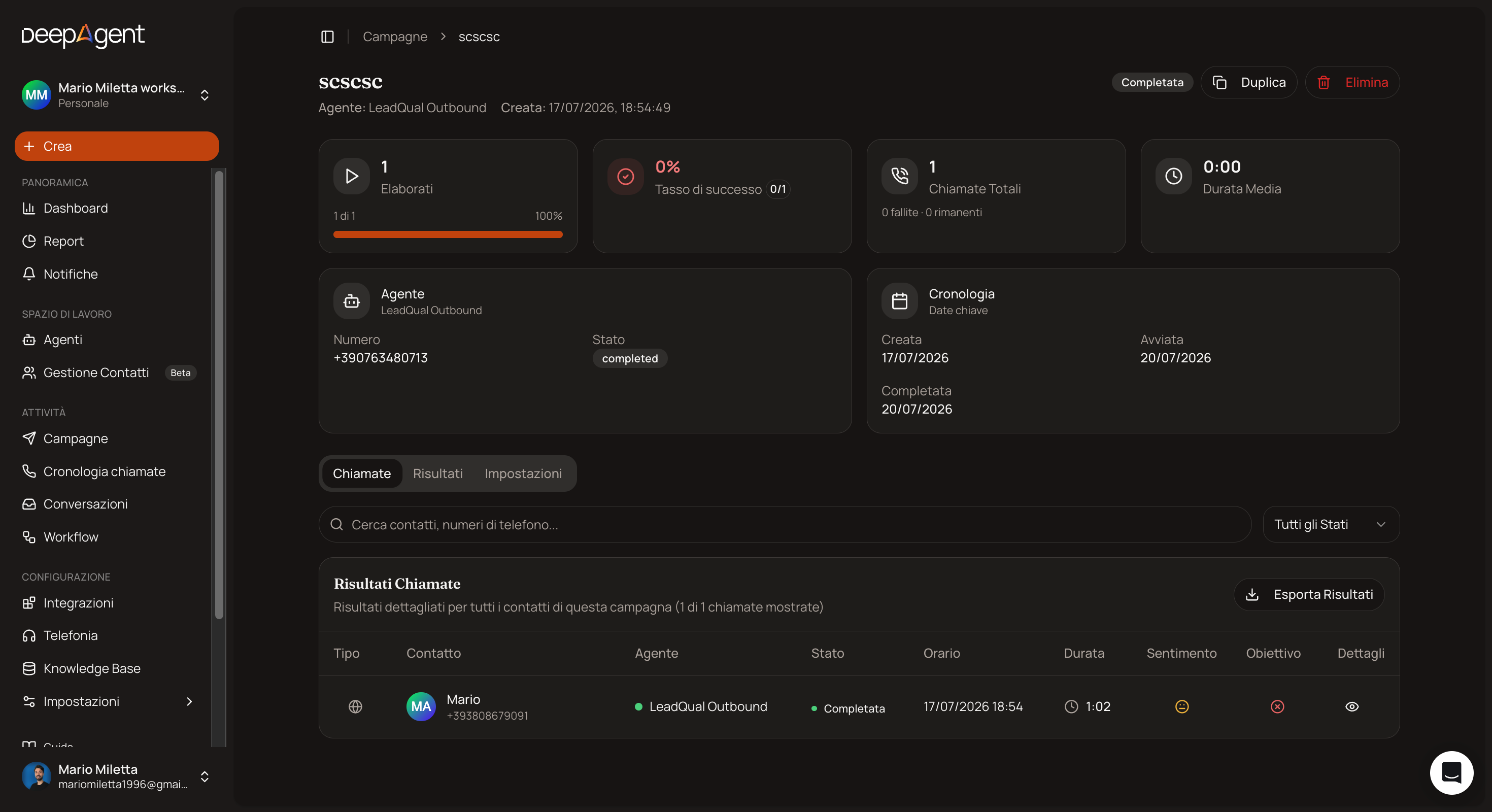
The details page shows the calls still to be made, those already made, and the success rate. For each individual call, you can view the details, read the transcript, and listen to the audio again.
What to look for in the first half-hour
Listen to two or three actual calls, not just the numbers: this is the quickest way to spot a problem with the script.
Check that the success rate isn’t zero after the first few dozen calls.
Verify that the results are being recorded where you expect them to be—in the data sheet, calendar, or both.
Managing campaign pauses, resumptions, and cancellations
Available Actions
In the Campaigns section, you can manage a campaign’s status using the following actions:
Pause: Temporarily suspends the campaign, stopping new calls from being initiated.
Resume: Reactivates a previously paused campaign, allowing the system to resume the calling process.
Cancel: Permanently stops the campaign, preventing any new calls from being initiated in the future.
How to Use Campaign Management Actions
To access the available actions:
Go to the Campaigns section from the side menu.
Locate the relevant campaign in the list.
Click the ⋯ (three dots) button to the right of the campaign.
From the Actions menu, you can select:
Pause to temporarily suspend the campaign;
Resume to reactivate a previously paused campaign;
Cancel to permanently stop the campaign.
Campaign Behavior
Pause Campaign
Pausing stops new calls from being sent, but allows you to resume the campaign at a later time.
It’s important to note that, when the pause is applied, some calls may have already been initiated by the system. These calls will continue as normal until they are completed.
Pausing therefore only blocks calls that have not yet started.
Resuming the Campaign
When a campaign is resumed, the system automatically continues processing the contacts still available in the list.
Contacts who have already received a call are not called again, preventing duplicates and ensuring the continuity of the process.
Permanent Cancellation
Cancellation permanently terminates the campaign and prevents new calls from being initiated.
In this case as well, any calls already in progress or conversations already active at the time of cancellation will continue until their natural conclusion.
Cancellation therefore affects future campaign activities but does not interrupt calls already in progress.
Important Note on Scheduled Follow-Up Calls
Any callbacks that have already been scheduled are managed separately from the main campaign.
Pausing or canceling the campaign does not automatically delete scheduled callbacks: these must be managed according to the procedures outlined for callback management.
In summary
Pause → temporarily blocks new calls, but allows you to resume the campaign later.
Resume → continues the campaign with contacts still available, without calling those who have already been contacted.
Cancel → permanently stops the campaign and blocks new calls.
Calls already in progress → continue until completion even after the campaign is paused or canceled.
Scheduled callbacks → must be managed separately and are not automatically canceled.
When to Stop a Campaign
Stop it immediately, without hesitation, if you notice even one of the following:
The agent introduces themselves with the wrong name or offer
Calls drop off systematically after the first sentence
The success rate is zero after at least a hundred calls
You’re receiving complaints from your contacts
Calls are being made outside the time window you set
Pausing and resuming after an hour costs much less than burning through an entire list.
If a single contact should no longer be called
There’s no need to stop the campaign: just block that contact. See the related article: Contacts: Exclude or block a contact from calls
Related articles
Create the campaign: times, attempts, and limits
Exclude or block a contact from calls
How to test the agent before launching it
Was this helpful?
Still need help? Share an idea