List: Prepare a list of contacts to call
How to set up the contact file, how to import it, how to create static and smart lists, and what to check before launching.
Written By Product
Last updated 4 months ago
There is only one required field: a column with phone numbers. Everything else is optional, but each additional column becomes a variable that the agent can use to personalize the call.
How the file should be formatted
Automatically recognized columns:
phone— required: the number to callfirstName/lastName— first and last nameemailcompany— company
Any other column (amount, city, case number, product of interest...) becomes a custom field and can be referenced in the script as a dynamic variable.
💡 Give the columns human-readable names—
nome_cliente—not “Column A.” You’ll need these to identify them during mapping and to reference them in the script.
Phone numbers
Enter numbers with the international dialing code (+39...). If you import numbers without a dialing code, the selected country will be applied, with Italy as the default.
Two ways to upload contacts
Directly into the campaign
If you look at the sidebar, you’ll find a button labeled “Campaign.”
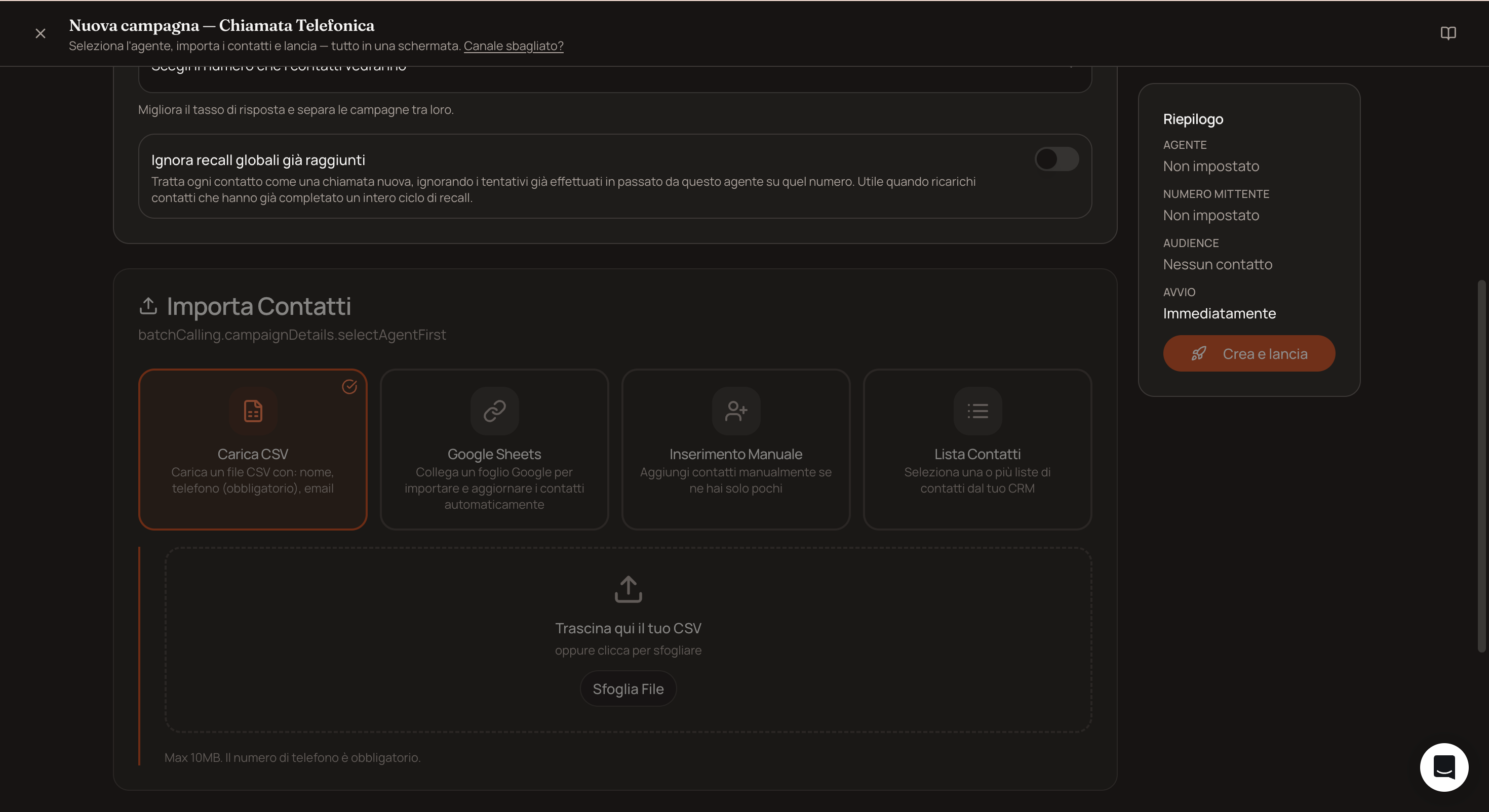
When creating a campaign, in the contact import section, you can upload a CSV file, link a Google Sheet, or enter the numbers manually, one per line.
This is the fastest way if the list is only needed for that campaign.
In the Contact Management section
If you want to reuse contacts, keep a history of them, and segment them, import them first into Contact Management:
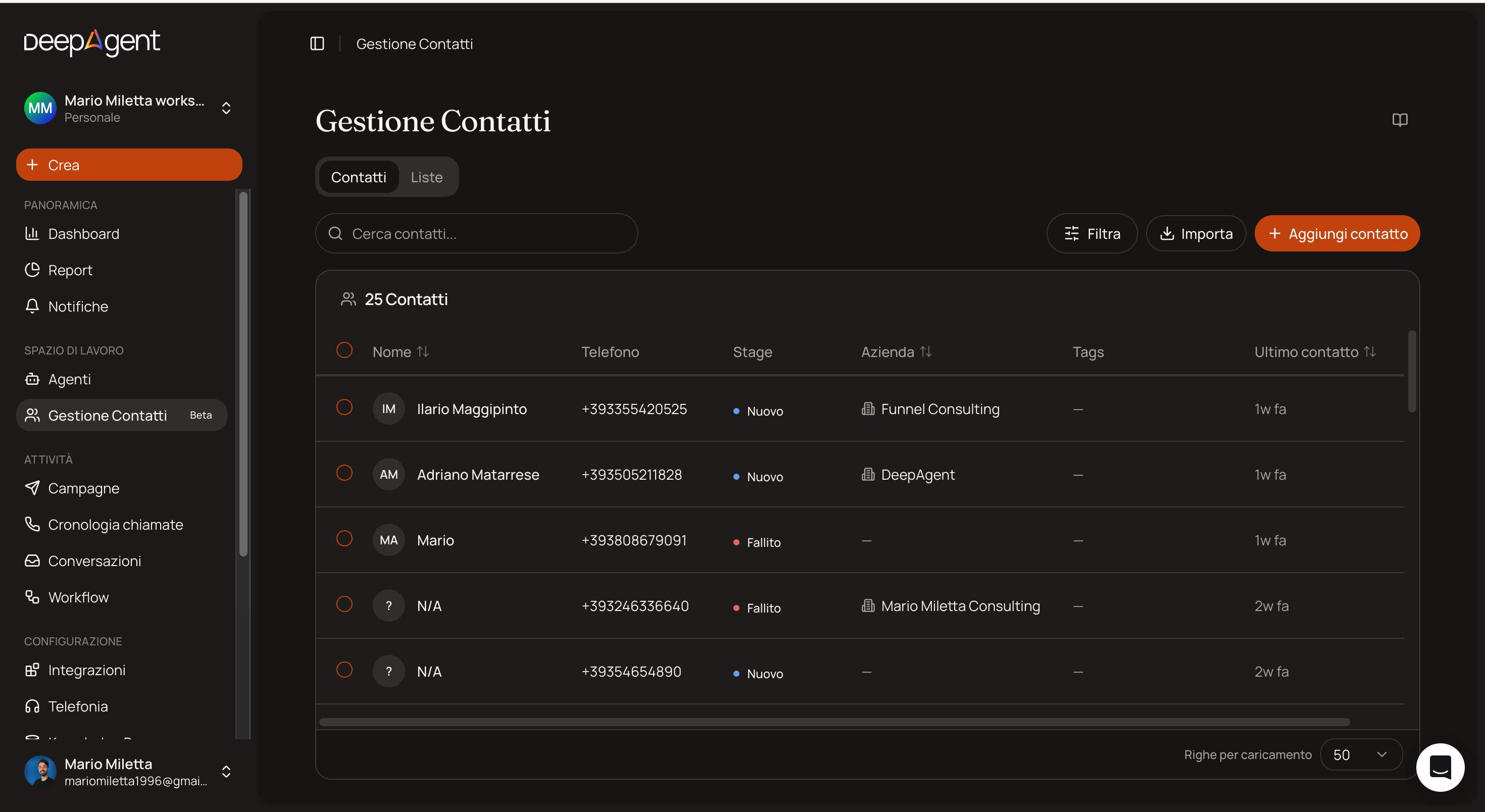
Click “Import” in the top-right corner
Upload the CSV and choose the delimiter—comma or semicolon
Check the preview of the first few rows
Map the columns to the corresponding fields; set any you don’t need to “Ignore”
Assign a stage and common tags to all imported contacts (e.g.,
import-gennaio): you’ll need these to find them laterStart the import
Once the import is complete, see how many contacts were imported, how many duplicates were skipped, and which rows resulted in errors, along with the reason.
Create a list for the campaign
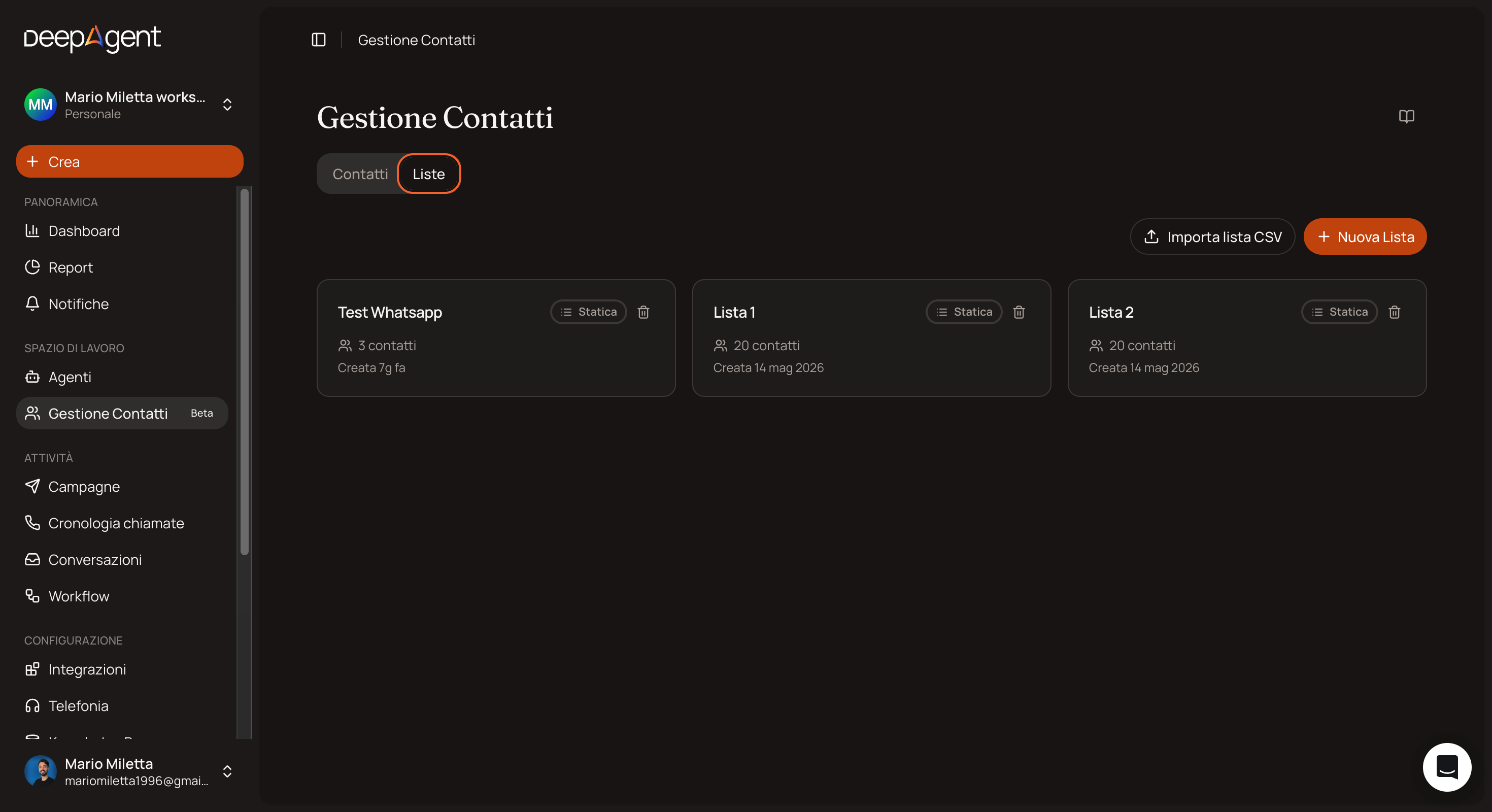
From the Lists section in Contacts, you can group contacts to use in outbound campaigns:
Static list — you choose the contacts; the list remains fixed
Smart list — define filters (stage, tag, source, etc.), and the list updates automatically as contacts that meet the criteria are added
In a list’s details, there’s a Readiness tab: it shows which campaign variables have values assigned to the contacts. Check it before launching—it’s the fastest way to realize that half the list has an empty name field and the agent will be greeting an empty field.
How Many Contacts Per Campaign
We recommend between 500 and 1,000 contacts per campaign.
If the list is longer, split it up: smaller campaigns are easier to monitor and stop if something goes wrong.
Related Articles
How to Use the Contact Manager
Dynamic variables: how to personalize each call
Was this helpful?
Still need help? Share an idea