Purchase a phone number in DeepAgent
This guide will take you step by step through buying phone numbers at DeepAgent.
Written By Product
Last updated 9 months ago
This guide will walk you through the process of purchasing phone numbers on DeepAgent step by step.
Overview
DeepAgent allows you to purchase phone numbers directly from the platform to enable AI agents to make and receive phone calls. The purchase process is simple and guided, but may vary depending on the country you choose.
Pricing
Monthly cost per number: $5/month per number + VAT
Billing: Numbers are automatically added to your Stripe subscription
Charging: The cost is charged upon purchase
Access to the Telephony Section
Log in to your dashboard DeepAgent
Go to Integrations → Telephony
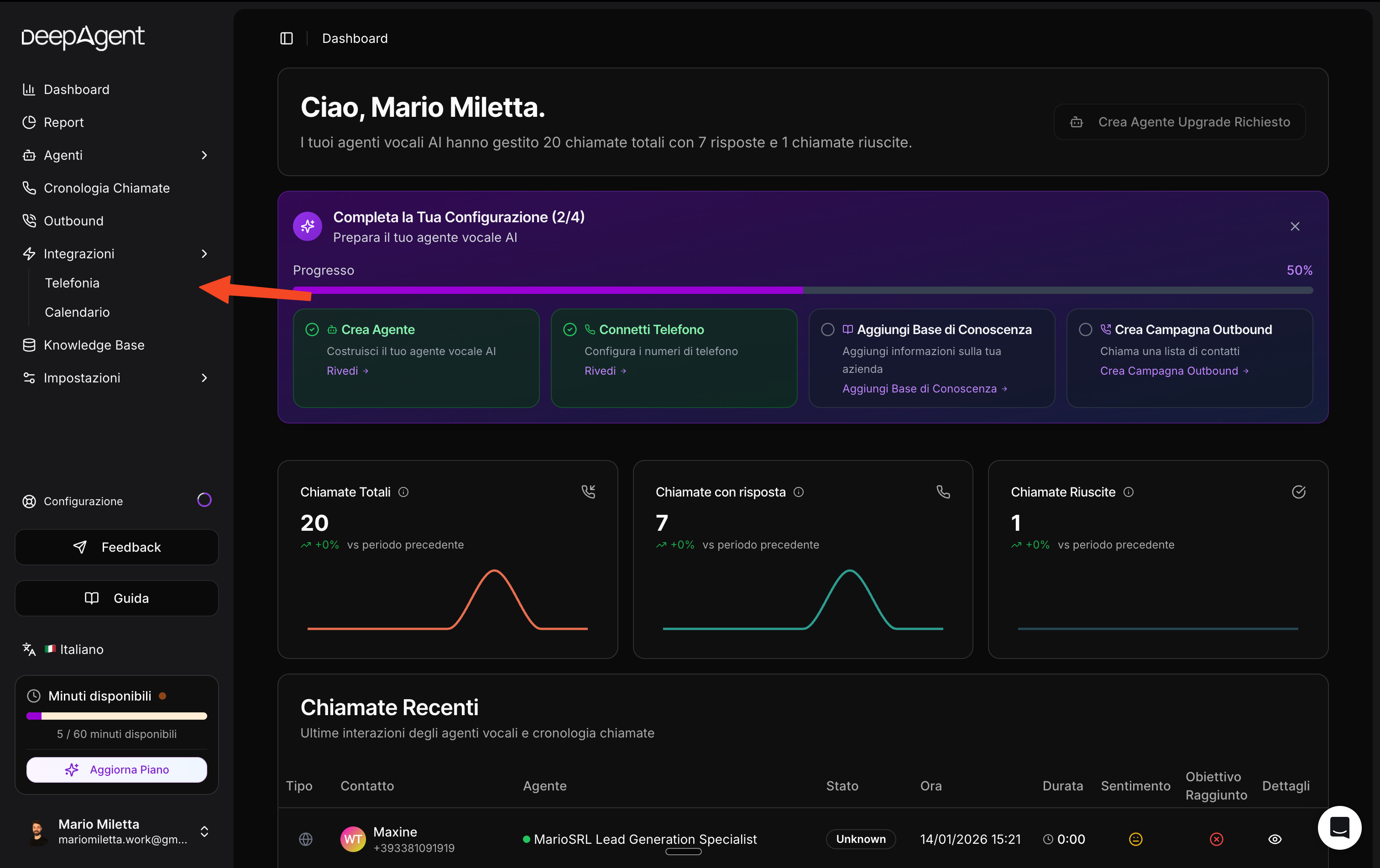
Select the "Numbers" tab
Click on the "Buy DeepAgent Number" button
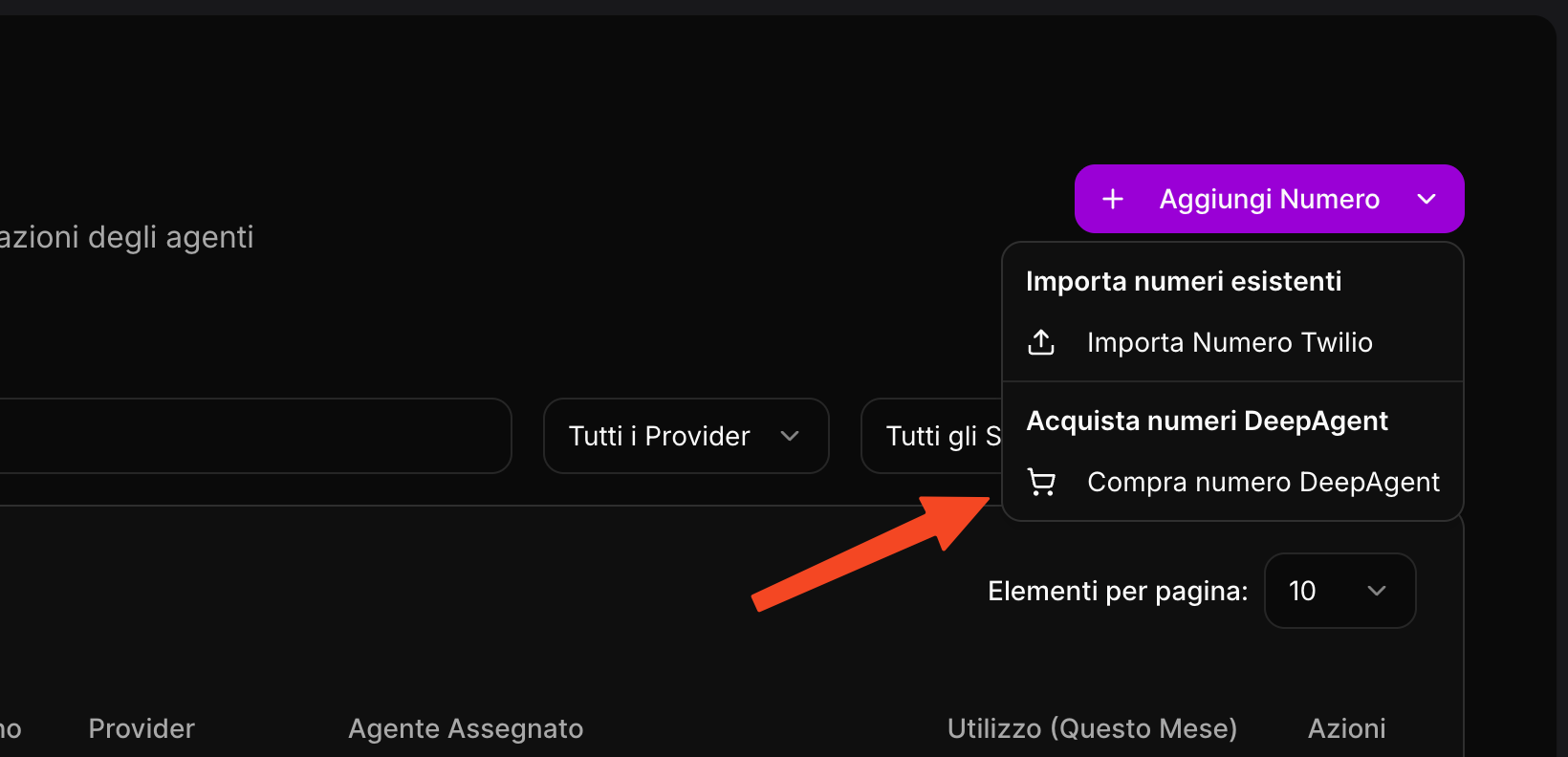
Standard Purchase Process
Step 1: Search for Available Numbers
On the first screen of the wizard:
Select the country: Choose the country for which you want to purchase the number
Example: Italy (IT), United States (US), Germany (DE), etc.
Area Code (Optional): Enter a specific area code if you want a number from a specific area
Example: For Rome, enter "06"; for Milan, enter "02"
Click on "Search" to view the available numbers
Number Selection:
You can select one or more numbers at the same time (multiple purchase).
The available numbers are displayed in a list with checkboxes
Click "Next" to proceed
Step 2: Confirm Purchase
On this screen, you can:
Review the selected numbers: Check that the numbers you have chosen are correct
See the total price:
Cost per number: $5/month
If you purchase 3 numbers: €15/month total
Optional assignment:
You can immediately assign the number to a specific agent
Or leave it unassigned and configure it later
Click "Confirm Purchase" to complete the transaction
Step 3: Success
If your country does not require compliance documents, you will immediately see:
✅ Purchase confirmation message
The number is now available in your number list
You can start using it immediately
Purchase for Countries with Regulatory Requirements
Some countries require verification of identity documents for regulatory compliance.
Countries Requiring Documents
The following countries require documentation:
🇮🇹 Italy (IT)
🇨🇭 Switzerland (CH)
🇩🇰 Denmark (DK)
🇳🇴 Norway (NO)
🇵🇹 Portugal (PT)
🇸🇪 Sweden (SE)
🇩🇪 Germany (DE)
🇫🇷 France (FR)
🇪🇸 Spain (ES)
🇦🇹 Austria (AT)
Process with Documents
Additional Step: Document Upload
After confirming your purchase, an additional step will appear:
First time for this country?
If this is your first time purchasing a number for this country, you will need to create a "Requirements Group."
Click on "Verify Identity"
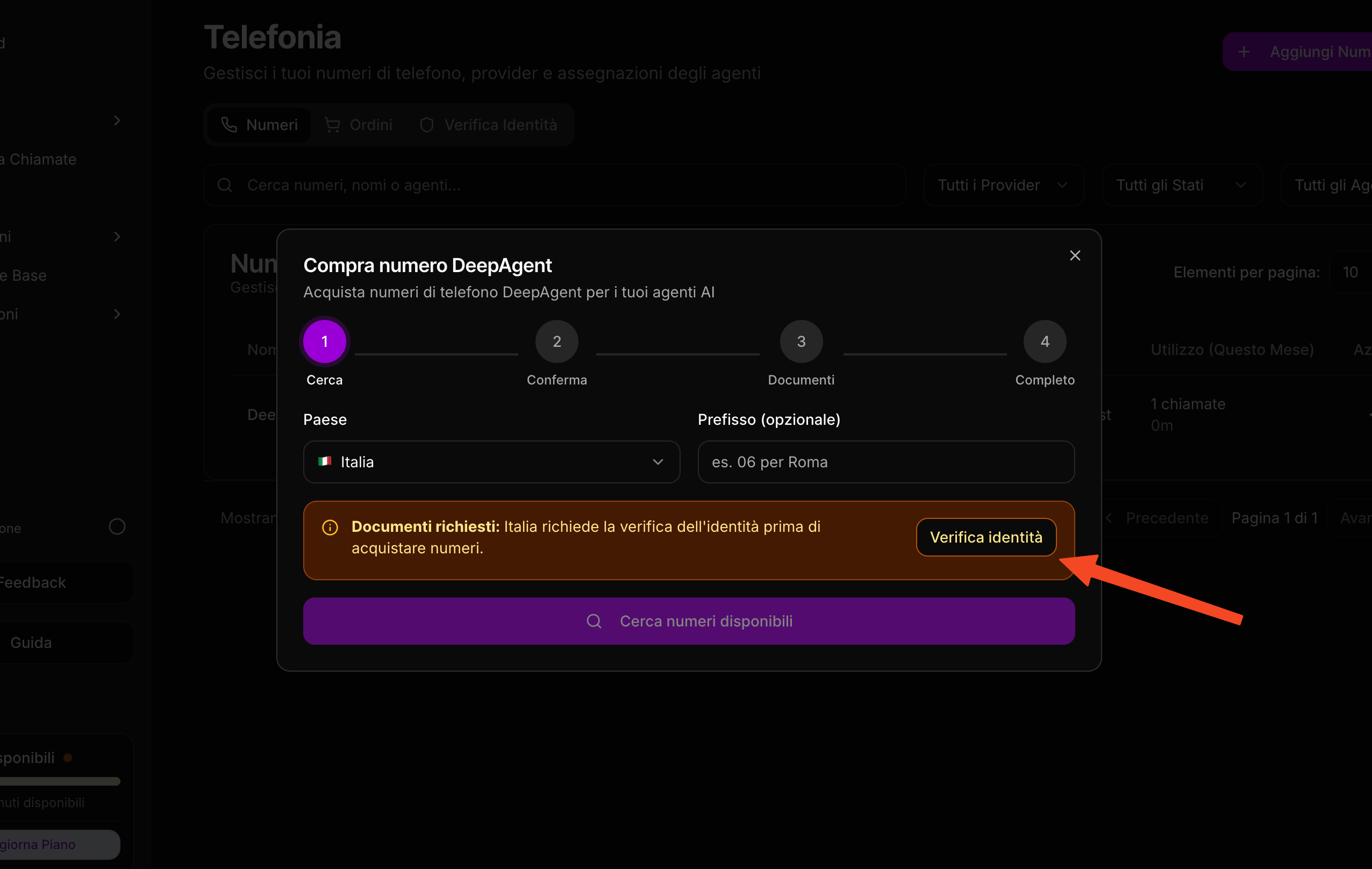
Fill in the required information:
A. Customer Type:
Individual: If you are purchasing as a private individual
Company: If you are purchasing as a company
B. Identity Documents:
Upload a valid identity document (ID card, passport)
Accepted formats: PDF, JPG, PNG
Maximum size: 5MB
C. Address information:
Full name / Company name
Full address
City
Postal code
State
Submit for Approval:
Click on "Submit for Review"
The documents will be sent to the provider for verification
Initial status: "Pending"
Awaiting Approval:
The provider will review your documents (usually within 1-2 business days)
You will receive a notification when the status changes
You can check the status in the "Orders" tab
Possible Order Statuses:
🟡 Pending: Order created, documents under review
🟢 Success: Documents approved, number activated
🔴 Rejected: Documents rejected, check the comments for the reason
Reuse Requirements Group
If you have already created an approved requirements group for a country:
On the documents screen, select "Use Existing Group"
Choose the already approved group from the list
The purchase will be completed immediately without further verification
Order Management
View Orders
Go to Integrations → Telephony
Select the "Orders" tab
You will see a list of all your orders with:
Number(s) purchased
Order date
Status
Country
Order details
By clicking on an order, you can:
View complete details:
List of all numbers included in the order
Status of each number
Attached documentation
Add comments:
You can add internal notes to the order
Useful for keeping track of communications with support
Upload Additional Documents:
If documents are rejected, you can upload new documents
Update the requirements group with the correct information
Billing and Charges
How Billing Works
First Purchase:
The number is added to your Stripe subscription
Recurring Charges:
Each number costs $5/month + VAT
The charge occurs automatically every month
You can view all numbers on the Settings → Billing page
View Costs:
Go to Dashboard → Settings → Billing
"Phone Number Add-ons" section
You will see all your numbers listed with the monthly cost
Post-Purchase Configuration
After purchasing a number, you can:
1. Assign it to an Agent
Go to the agent list
Click on the agent you created
Go to "Phone"
Select the purchased number
Save
2. Test the number
Use the agent test function
Make a test call
Verify that everything is working correctly
Troubleshooting
The number does not appear after purchase
Solution:
Refresh the page
Check the "Orders" tab to see the status
If the status is "Pending," wait for the documents to be approved
Documents rejected
Solution:
Check the comments in the order for the reason for rejection
Upload better quality documents
Ensure that the information is correct and legible
Resubmit the updated set of requirements
Error during purchase
Solution:
Verify that your Stripe subscription is active
Check that your payment method is valid
Contact support if the problem persists
I cannot find numbers for my area code
Solution:
Try removing the area code and searching nationally
Try area codes from neighboring areas
Some area codes may not have any numbers available
Frequently Asked Questions (FAQ)
Can I purchase numbers from multiple countries?
Yes, you can purchase numbers from any supported country. For each country that requires documentation, you will need to create a separate requirements group.
How long does approval take?
Usually 2-3 business days for countries that require documents. For countries without requirements, the number is available immediately.
Can I cancel a number?
Yes, you can release a number from the telephony page. The cost will be removed from the next billing cycle.
Can I port an existing number?
Yes, you can using the "Import number" feature.
What happens if the payment fails?
If the monthly payment fails, the numbers may be suspended. Update your payment method in Settings → Billing to reactivate the service.
Support
If you need assistance:
📧 Email: product@deepagent.app
💬 Chat: Available in the dashboard
Last modified: January 2026 Version: 1.0
Was this helpful?
Still need help? Share an idea