How to integrate your AI agents DeepAgent with n8n
In DeepAgent you can use the native integration with N8N to automatically create a workflow where all the data from the call made by the AI agent will arrive.
Written By Product
Last updated 4 months ago
How to configure n8n
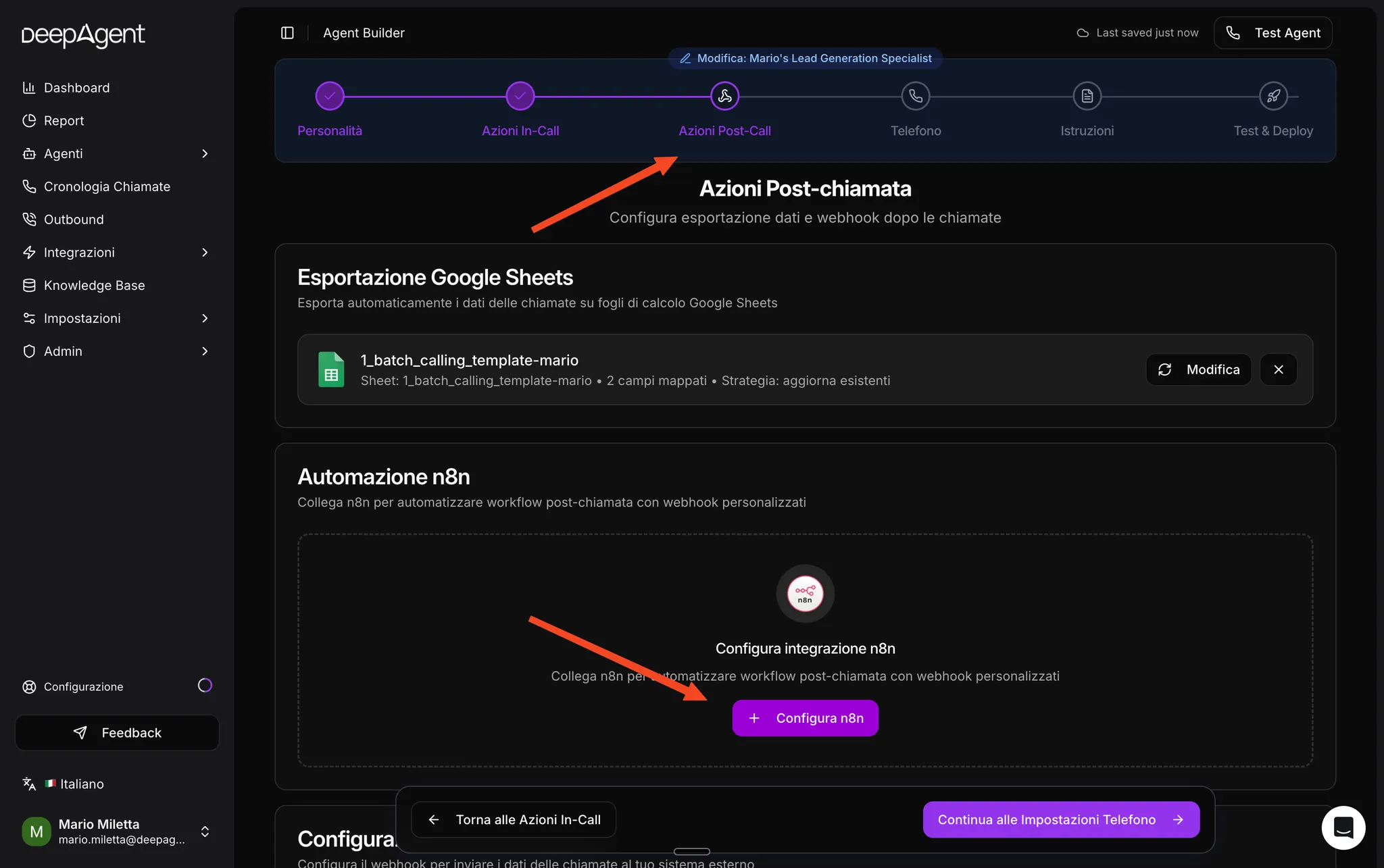
To configure this integration, simply go to the agent settings, select "Post-call actions," and click on "Configure n8n."
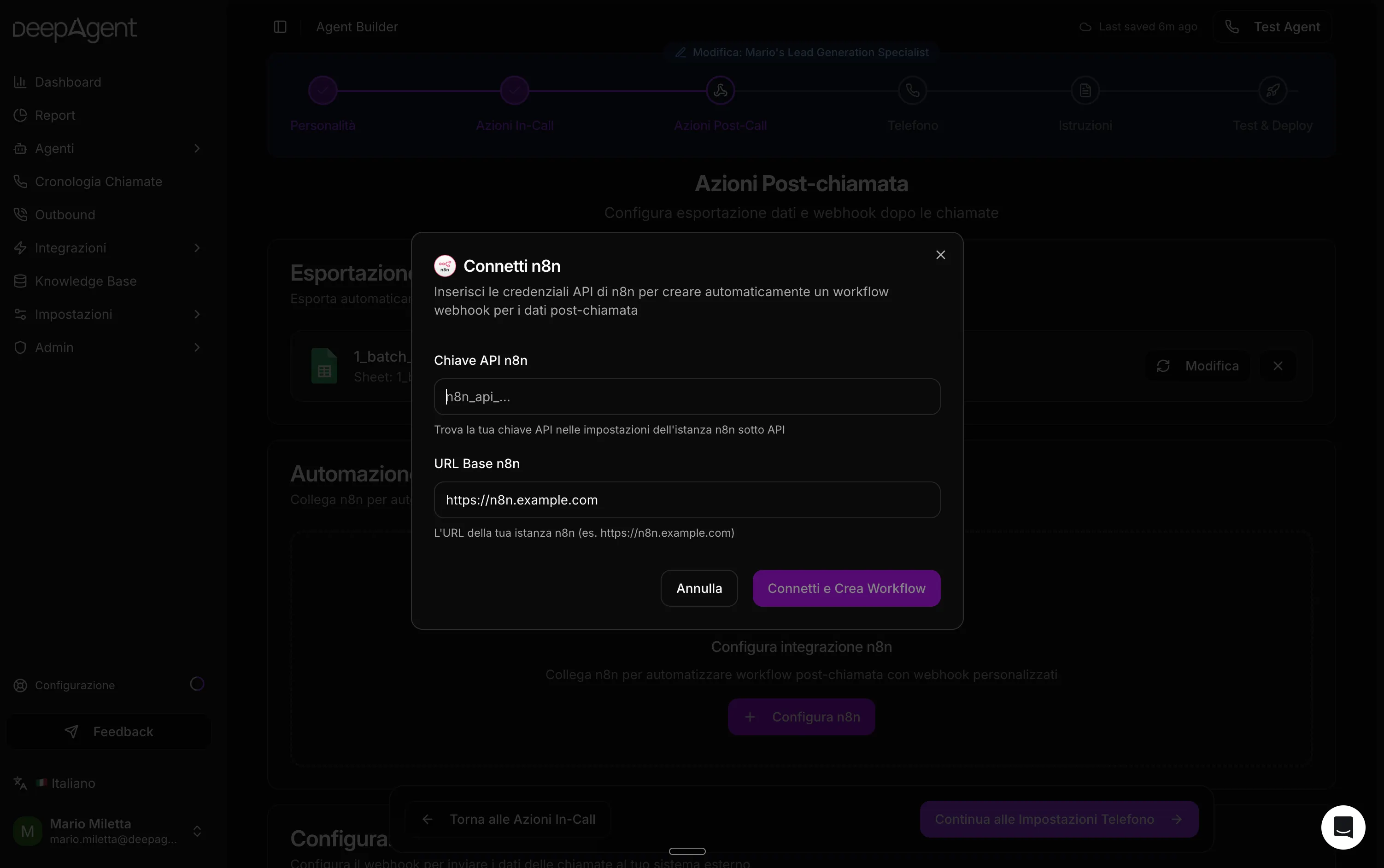
Once you click "Configure n8n," a modal will open where you will need to enter the API Key and Base URL of n8n.
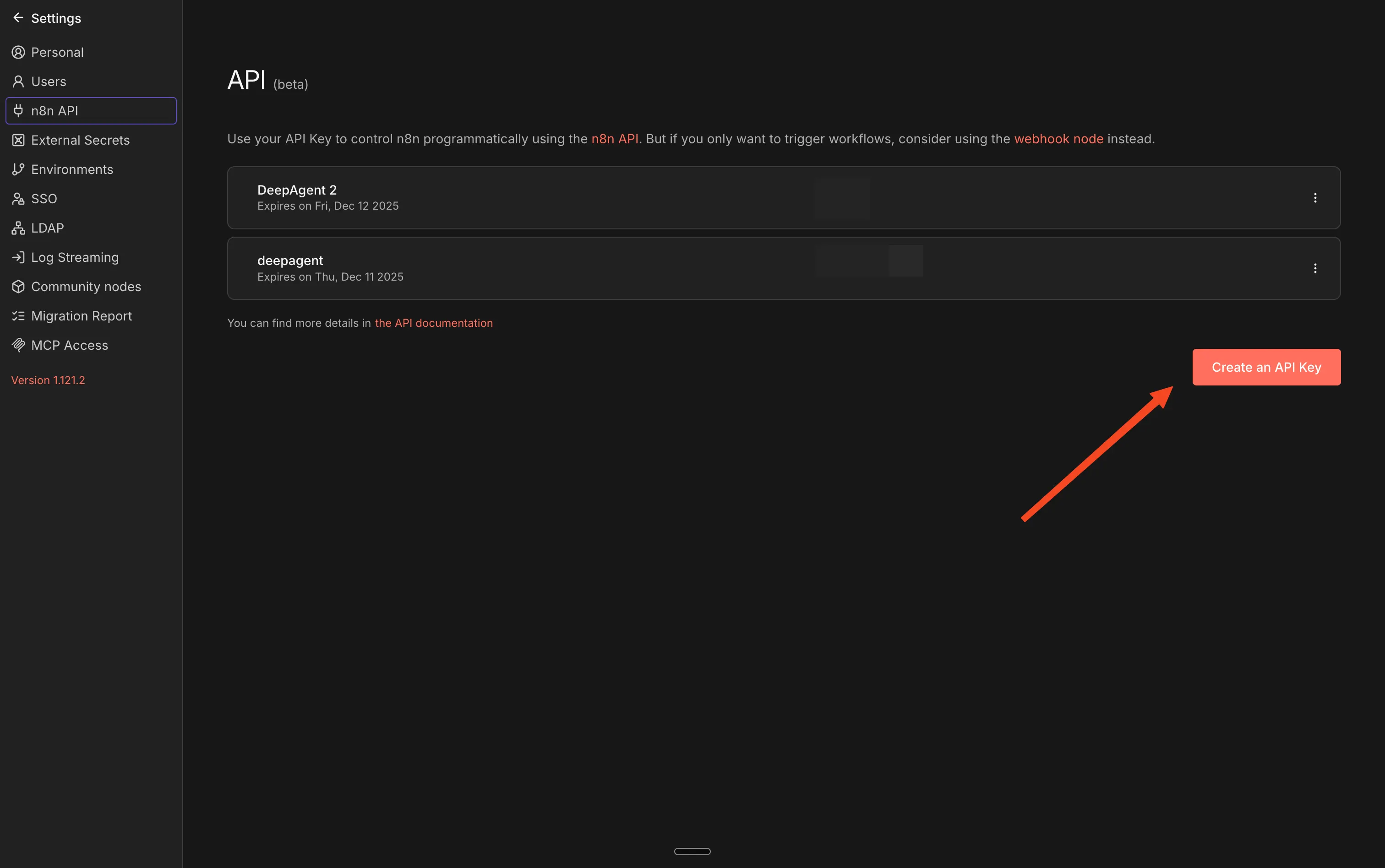
To find these values, go to your n8n account → Settings → n8n API and click on "Create an API Key."
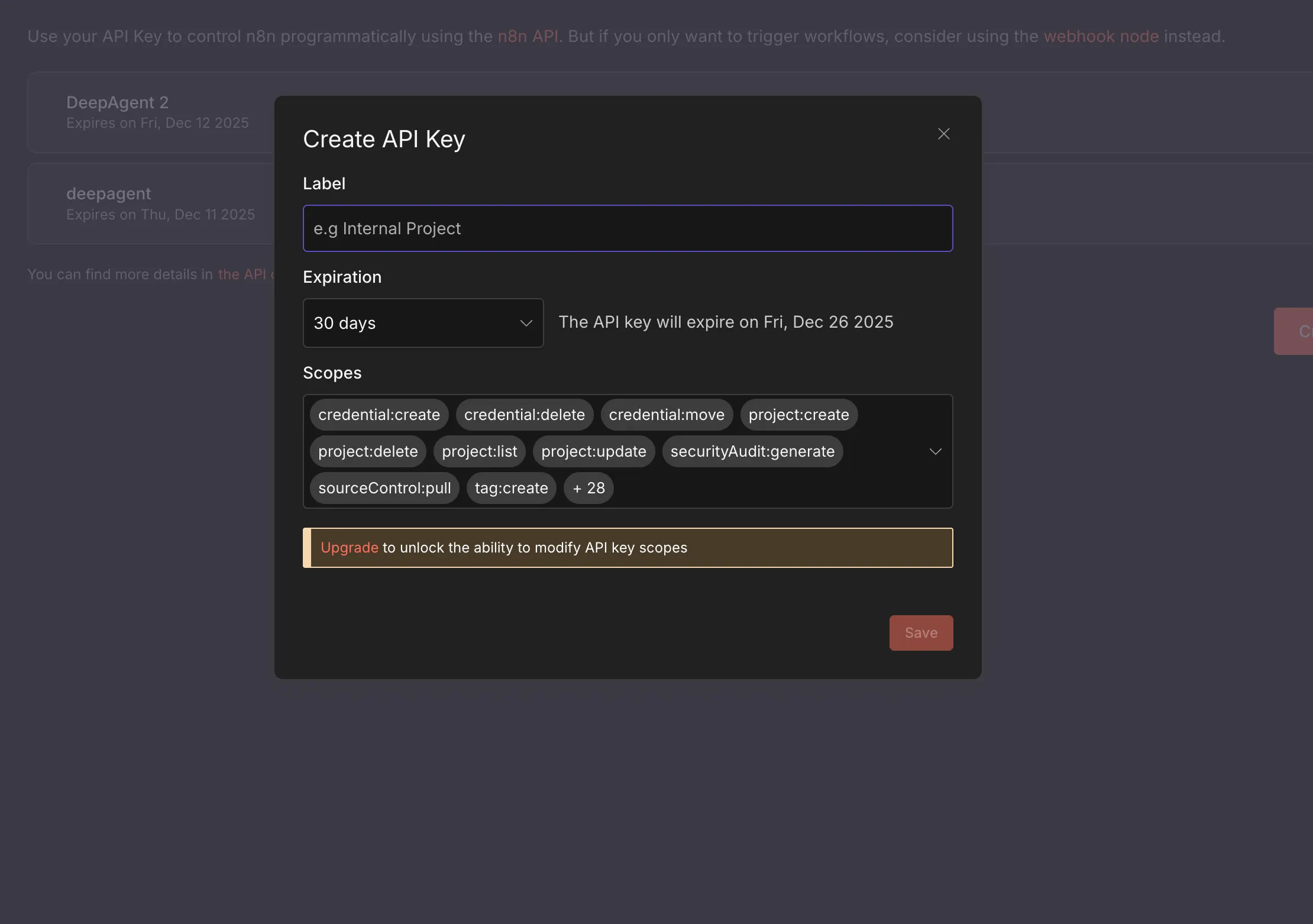
Add a label and expiration date and create your API key, which you will enter in the "n8n API Key" field at DeepAgent
The n8n base URL will be the URL of your n8n account (which you can find in the address bar when you are in n8n).
After entering the n8n API Key and n8n Base URL, click on "Connect and Create Workflow" and this will create a new workflow on n8n with a "Webhook" node.
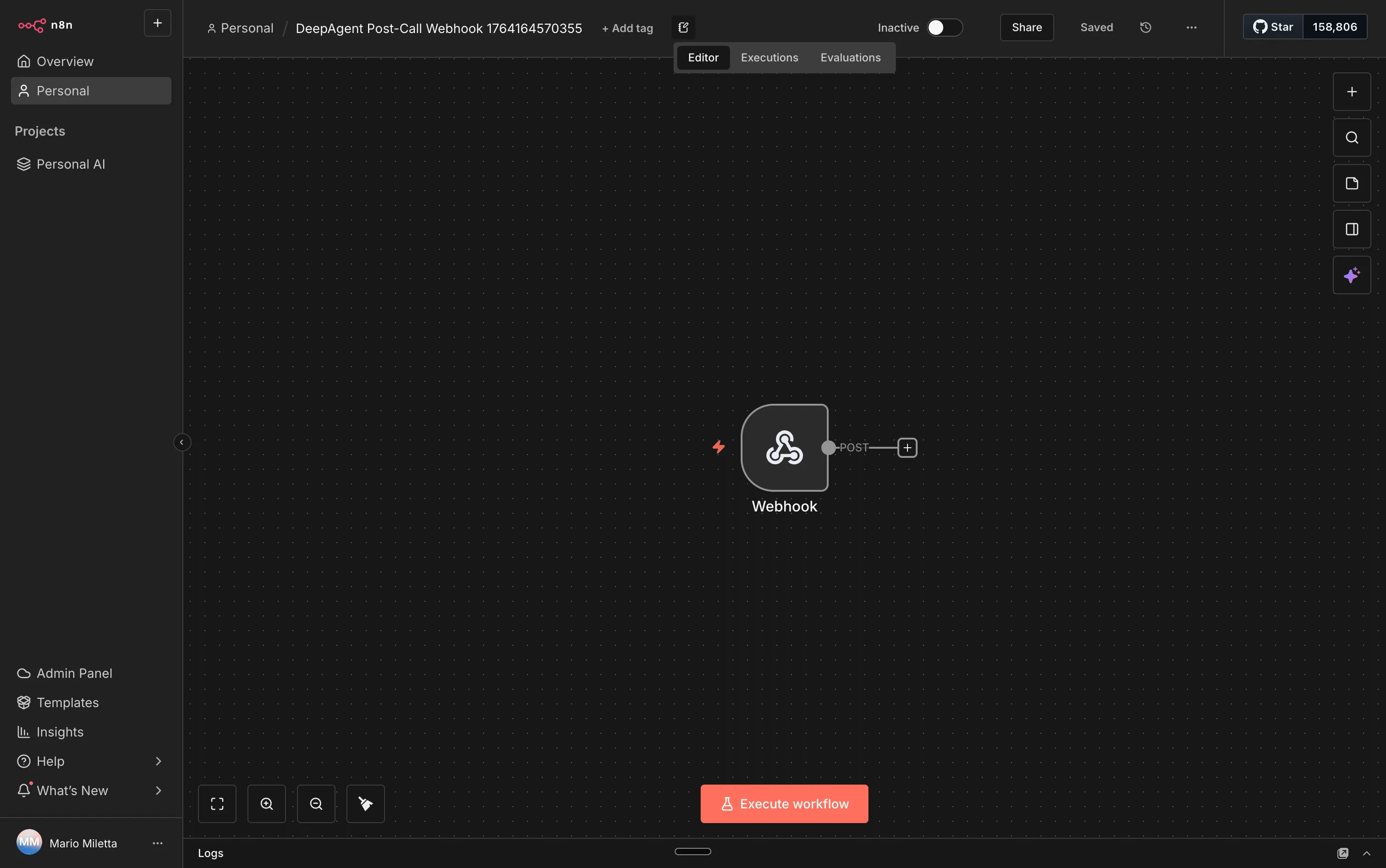
This way, DeepAgent will send all the data from the calls made by the agent to the n8n node. By connecting the node to other n8n nodes, you can create many workflows, such as sending WhatsApp messages, emails, or integrating with CRM systems.
Here are some concrete use cases for tDeepAgent→n8n integration that you can use in the guide.
Use cases
1. Automatically create a ticket in the CRM/Helpdesk
When the AI agent ends a call:
n8n receives the call data (name, number, outcome, summary, intent).
It creates or updates the contact in the CRM.
Opens a ticket with the call report, priority, and initial status.
Example tools: HubSpot, Pipedrive, Zendesk, Freshdesk.
2. Sending personalized follow-up emails
At the end of the call:
n8n generates a recap email with the main points and next steps.
Send the email to the contact using your chosen provider.
Examples:
Appointment confirmation email.
Email with links to documentation or the offer discussed during the call.
3. Sending WhatsApp/SMS messages after the call
After the call:
n8n sends a WhatsApp or SMS message to confirm or remind.
Examples:
"Thank you for contacting us, here is a summary of your request..."
Reminder of appointment made during the call.
4. Update sales pipeline and opportunities
If the AI agent makes a sales call:
n8n automatically updates the opportunity stage in CRM.
It adds notes from the call to the deal/opportunity.
It sets a task for the sales rep (call back, send quote, demo, etc.).
5. Automatic creation of internal tasks
Based on the outcome of the call:
n8n creates tasks in project management tools.
Examples:
Create a card on Trello/Asana/ClickUp with "Activate new customer account X."
Open an issue on GitHub/Jira if the call concerns a technical bug.
6. Update internal database / Notion / Airtable
For each call:
n8n writes a new row in a database (Notion, Airtable, Google Sheets).
Save metrics such as duration, sentiment, outcome, product of interest.
Useful for:
Custom reporting.
Internal dashboards.
Call funnel analysis.
7. Activation of customer onboarding automations
If the call is from a "new customer":
n8n adds the contact to a specific list in a marketing automation tool.
It initiates an onboarding sequence (emails, SMS, internal notifications).
8. Real-time internal notifications
For "critical" calls (e.g., hot lead, urgent complaint):
n8n sends automatic messages on Slack/Teams with the call details.
It mentions the team or person responsible for a quick response.
9. Synchronization with analytics tools
After each call:
n8n sends events to analytics tools (e.g., Amplitude, Mixpanel, GA4).
You can track conversions such as "Call completed," "Appointment scheduled," etc.
Practical example: DeepAgent → n8n → GoHighLevel (contact, opportunity, automation)
In this example, we see how, at the end of each call handled by the DeepAgent AI agent, n8n automatically creates/updates a contact, an opportunity, and triggers automation in GoHighLevel.
Step 1 – DeepAgent webhook in n8n
When the call ends, DeepAgent sends n8n a payload with the call data, for example:
Caller name
Phone number
Email (if available)
Call outcome (e.g.,
lead_caldo,richiesta_demo,supporto)Summary of the conversation
Any tags/intents detected by the agent
In n8n, this arrives in the initial Webhook node, automatically created by DeepAgent.
Step 2 – "GoHighLevel: Create/Update Contact" node
Add a GoHighLevel node after the Webhook, for example:
Node type: GoHighLevel
Operation: Create or Update Contact
Map the fields as follows:
Phone→ phone number received from DeepAgentEmail→ email from payload (if present)First Name/Last Name→ first and last name from payload (if you have them)Tags→ for example,deepagent-call,lead-caldo,richiesta-demobased on the outcome of the callNotes→ brief summary of the call returned by DeepAgent
This way, if the contact exists, it is updated; otherwise, it is created.
Step 3 – Node "GoHighLevel: Create/Update Opportunity"
Add a second GoHighLevel node to manage the sales pipeline:
Node type: GoHighLevel
Operation: Create or Update Opportunity
Configure:
Pipeline→ e.g.Vendite InboundStage→ based on the outcome of the call (e.g.,Nuovo lead,Demo prenotata)Contact→ connect the ID of the contact created/updated in the previous nodeValue→ estimated value if you obtain it from the callStatus→ e.g.Open
Step 4 – Node "GoHighLevel: Add to Campaign/Workflow"
If you want to start an automatic sequence in GoHighLevel:
Node type: GoHighLevel
Operation: Add Contact to Campaign/Workflow
Typical logic:
If the intent is
demo→ add the contact to a demo reminder campaignIf it is "
nuovo_cliente" → add to an onboarding workflow (email + SMS)
Step 5 – (Optional) Internal notification
You can close the flow with an internal notification, for example:
Slack node or Email
Message with:
Contact name
Call outcome
Link to the contact or opportunity in GoHighLevel
Was this helpful?
Still need help? Share an idea